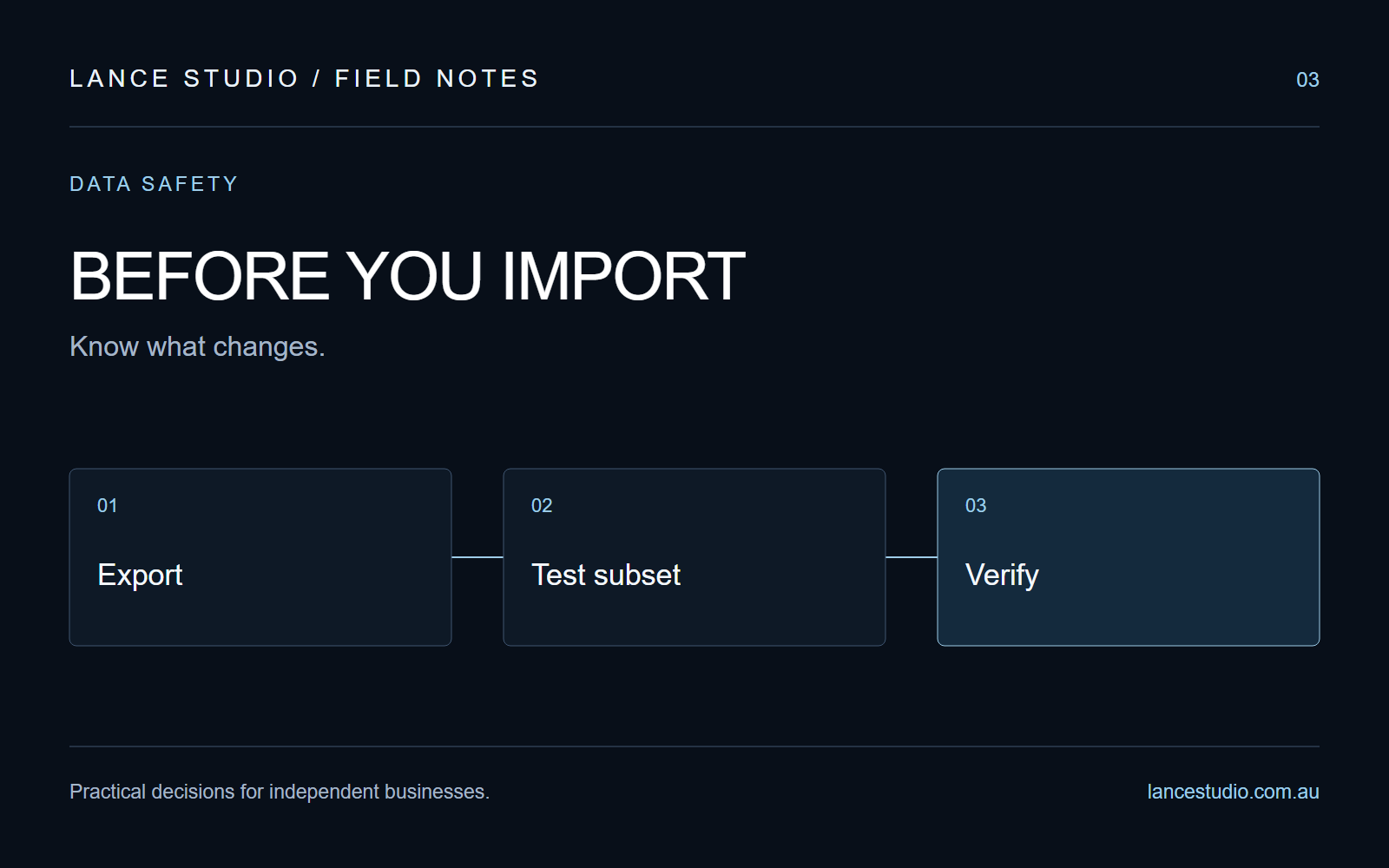
Write an import change contract
- Target handles __; fields allowed to change __; fields that must remain unchanged __.
- For every included column: intended replacement __; are blank cells deliberate? __.
- For every omitted column: reason __; field dependencies checked __.
- Representative sample: simple product __; multi-option product __; multi-image product __, where applicable.
- Compare sample results: intended fields __; protected fields __; variant/image relationships __; affected apps __.
Choose the right tool for the change
If you only need to change a few visible fields across selected products, consider the bulk editor in Shopify admin first. Shopify recommends it as the easiest way to edit multiple products or variants together. A CSV is useful when the work needs a spreadsheet, but it adds file structure and import settings that you must review.
Keep stock adjustments separate from catalogue changes. Shopify directs stores with multiple locations to the inventory CSV for importing inventory quantities. A supplier product list is not, by itself, an instruction to replace the stock recorded at each location.
Keep a fresh export and a written change list
In Products, select the relevant products and use Export. Keep an untouched, dated copy, then edit a separate working file. Write down which products and fields should change and which must stay the same. This gives the person checking the import something more useful than “the file uploaded”.
Preserve the association between product, variant and image rows. Shopify warns that sorting an exported CSV in a spreadsheet can separate those relationships. Avoid reorganising the rows just to make the sheet look tidier.
Understand matching handles and blank columns
The overwrite setting matches the product handle, the identifier used in its URL. Do not assume a supplier SKU will match an existing product for this setting. If overwrite is off, products with matching handles are skipped.
- A non-required column included with a blank value can replace the existing value with a blank.
- An omitted non-required column normally keeps its existing value, unless another imported field depends on it.
- Including a field without the columns it depends on can remove existing data or cause an import error.
For example, leaving Vendor blank in an included column can clear the saved vendor. Removing a column from the file and emptying its cells are different instructions. Review each included column against your change list.
Treat variant changes as a separate decision
Shopify’s current format requires URL handle and Title when updating products. Variant fields have additional dependencies: an SKU update, for example, also needs the relevant option data. Work from your export and check Shopify’s current field reference before removing columns.
Changing option values can replace variant IDs and break apps that reference those IDs. If your task is a description update, leave variant restructuring outside it. If options really need changing, include the connected apps in the test plan.
Test representative products before the full file
Pick a small set that covers the structures in your actual catalogue: a single-variant product, a product with several options, and one with multiple images where relevant. For large merchant imports, Shopify specifically advises Partners to test a small subset in a development store first.
An unpublished theme previews storefront changes; it does not make a separate product database. Do not treat a theme preview as protection for a product import. Use an appropriate test store for rehearsal, then separately approve any test that will write to the live catalogue.
Compare the same records before and after. Check both the intended changes and the fields you expected to preserve. Expand the import only after the sample behaves as expected.
Review the import and verify the result
- Open Products > Import, choose the reviewed file and deliberately confirm the overwrite and new-product publishing settings.
- Review the import details before starting. Read Shopify’s confirmation email and investigate reported errors.
- Check selected products in admin and on the storefront: descriptions, images, option choices and any fields included in the update.
- Compare product and variant counts, then check connected apps if variant data changed.
- Keep the original export, imported file and a short record of what was checked together.
If the sample or full import changes something unexpected, stop further batches and identify the affected records before attempting another import. A second unreviewed file can make the cause harder to isolate. These checks reduce avoidable mistakes; they do not guarantee that every catalogue or app will behave identically. The official documentation below was checked on 26 October 2026.
Frequently asked questions
Does Shopify match existing products by SKU during CSV overwrite?
The “Overwrite products with matching handles” setting uses product handles. Do not assume that an identical supplier SKU selects the existing product for an overwrite.
Will a blank CSV cell leave the existing value unchanged?
Not necessarily. A blank value in an included non-required column can clear the saved value. Omitting a non-required column normally preserves it, but you must check field dependencies first.
Can I safely test a product CSV on a duplicate theme?
A duplicate theme does not create a separate product database. Rehearse in an appropriate test store and obtain separate approval for any import that changes live products.
Official sources
Product, access, and technical details in this article are based on the following official documentation.
- Shopify Help Center: Importing products with a CSV file
- Shopify Help Center: Product CSV fields and dependencies
- Shopify Help Center: Exporting products
- Shopify Help Center: Backups and duplication
- Shopify Help Center: Exporting and importing inventory with a CSV file
- Shopify Help Center: Theme previews and store content
Need a custom integration?
Describe the systems involved, the data that needs to move, and the exception that a standard app cannot handle. We can assess whether a custom app or integration is appropriate.