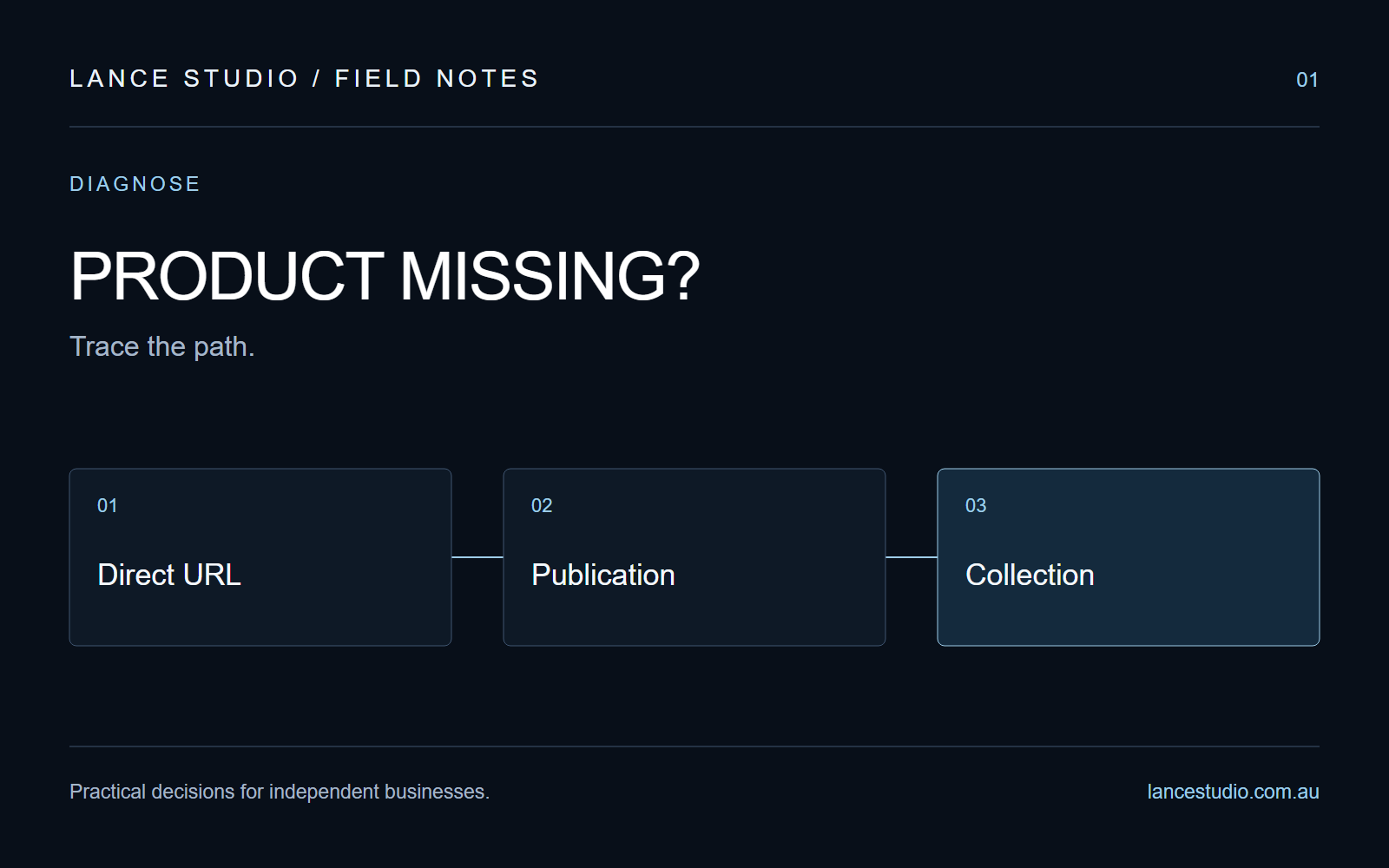
Copy this missing-product test record
- Product URL __; expected collection __; public market/country __.
- Direct product link opens: yes/no. Status __; Online Store publication __.
- Product included in the exact collection: yes/no. Collection published: yes/no.
- Menu destination __. Does it match the collection inspected? __.
- One suspected cause __; one proposed change __; before/after result in the same public view __.
Record where the product is missing
Choose one affected product and write down its storefront URL, the collection URL and the customer view you are testing. Use a private browser window so you are checking the public store rather than an admin preview. Record the selected country or market if your store offers a selector; compare the same view after each change.
Try three routes: open the product directly, open the intended collection, then follow the store menu to that collection. Describe the result precisely: a missing page, a missing product card, or a page that opens but cannot be purchased. This guide focuses on discovery in the Online Store, rather than diagnosing payment failures or promising a fix for every app.
Take screenshots of the affected settings before saving anything. Keep one unaffected product as a comparison. If the problem affects a whole collection, that comparison helps you avoid editing dozens of products when the missing link is shared.
Check product status and Online Store publication
In Products, open the affected item. Check its status and the Publishing section separately: being Active does not by itself publish it to the Online Store. Draft and Archived products are not available for normal storefront browsing. If publication is missing, first confirm the item is approved for public sale before changing it.
Unlisted is a deliberate exception: the direct URL can work while Shopify-powered collections, store search and recommendations omit the product. Third-party discovery apps can behave differently. If the item was intentionally unlisted, do not change its status just to make a test pass. Confirm whether customers should discover it or only receive its link.
If the page opens, inspect collection membership
Open the exact collection in Products > Collections and check whether the product is included. Current Shopify documentation describes collection sources that can include products manually or through conditions. Read the controls in your own admin rather than assuming every store still shows an older manual-versus-automated split.
For manually selected items, confirm that you selected the intended product or variant. For condition-based selection, compare the actual product details with every relevant rule. A condition on a tag is not the same as a condition on the product title. When several conditions apply, check whether the selection requires all of them or any one of them.
For example, in a hypothetical accessories collection, a tag condition can exclude an item whose tag was never added. Use that as a diagnostic example, not a reason to add tags across the whole catalogue. Correct the one mistaken detail or rule, then check what else the rule selects. A broader condition may pull in products you did not intend to feature.
Check the collection’s publication and the menu link
A collection has its own sales-channel availability. Making it available does not change the availability of its individual products. Check that the intended collection is published to the Online Store, and review any scheduled publication date before deciding it is broken.
Publication and navigation are also separate. Shopify’s collection guidance says to add a menu link so customers can reach the collection. Follow the actual storefront link and compare its destination with the collection you inspected. A menu item pointing to a different collection cannot be fixed by changing the correct collection’s products.
If the product and collection both open directly but the expected page section is still wrong, record the page and section involved. The useful question is now which collection or products that section is configured to display. Check that selection before considering code changes.
Retest one change and keep the result
Repeat the direct product link, collection link and menu path in the same public view. Check on a phone as well as desktop, and compare your unaffected item. If the product is meant to remain hidden until launch, stop and agree the intended publication state instead of exposing it for testing.
If discovery now works but the product says sold out or cannot be added to the cart, record that as a separate purchase-availability symptom. Do not invent stock quantities to clear it. Keep the affected variant, selected market and exact message for the next investigation.
If the cause remains unclear, send your support contact the product and collection URLs, screenshots without customer details, the expected placement and the checks already completed. Say whether a third-party search or merchandising app controls the missing area. This evidence is more useful than a request to change the whole theme. Official references below were checked on 9 November 2026.
Frequently asked questions
Can an Active product still be missing from the Online Store?
Yes. Check Online Store publication separately from status, then check the collection in which you expect the product to appear.
Why does the direct link work but the product is absent from collections?
Check whether the product is Unlisted and whether the collection actually includes it. An intentional Unlisted status is designed to allow direct-link access without normal Shopify-powered discovery.
Official sources
Product, access, and technical details in this article are based on the following official documentation.
Planning a custom Shopify website?
Share your store, the customer journey you want to improve, and what your current theme cannot support. We can assess the scope of a custom Shopify build.